

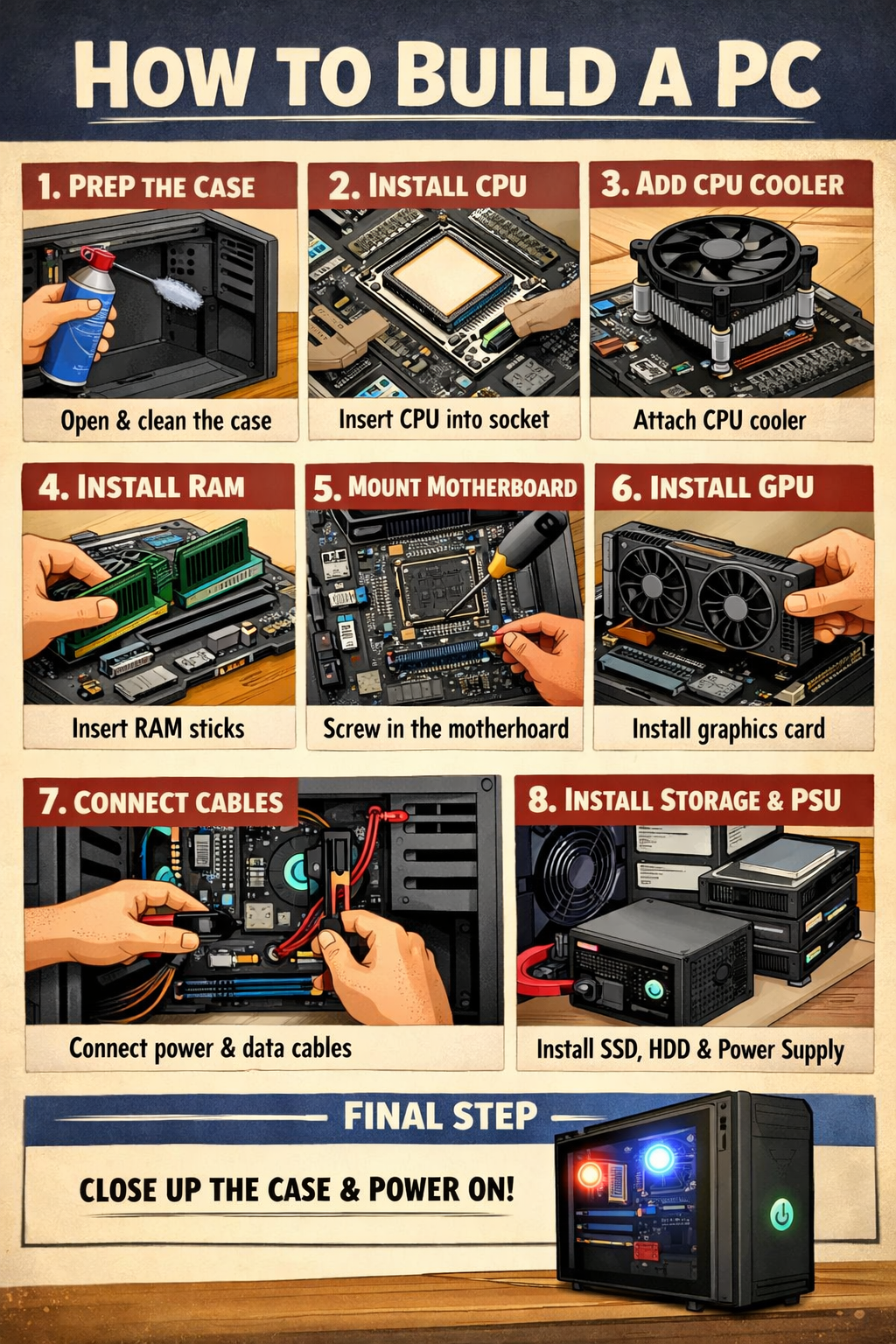
How to Build a PC (A Simple, Human Guide for Beginners)
There is something nice and satisfying about building your own PC. It is not only cost-effective and allows for better performance, but it is also a way to understand what is inside a machine you are constantly interacting with. The good news is that you do not have to be a computer genius to do it.If you are able to understand simple instructions and can be patient, you can build your own PC.
What You Actually Need
Before you begin with building your own PC, let's first talk about the necessary components. Think of these as building blocks for your computer.- Processor (CPU) – The brain of your computer
- Motherboard – The foundation where everything connects
- RAM (Memory) – Allows your computer to multitask
- Storage (SSD/HDD) – Where your files and operating system will be
- Graphics Card (GPU) – Required for gaming
- Power Supply (PSU) – The source of power for your computer
- PC Case – The enclosure for your computer
- Cooling – Prevents your computer from overheating
️ Before You Start
Do not start building your own PC as soon as you receive your components.Find a table where you can work. Make sure it is clean and preferably well-lit. Avoid building on a bed or carpet, as static electricity can damage your components. Make sure to touch a metal object every now and then. You will also need a screwdriver. This is basically the only tool you will need for building a PC.
Step-by-Step PC Build Process
1. Start with the CPU
Take the motherboard from the box and place it on a flat surface.Carefully open the CPU socket and place the CPU in the socket.Don’t force the CPU in. It should click in place if it is properly aligned.
2. Install the RAM
Locate the RAM slot on the motherboard.Insert the RAM sticks into their respective slots until you hear a click sound. It might be a little tight, but that is okay.---
3. Install Storage (SSD)
If you have an NVMe SSD drive, you can install it directly onto the motherboard.Insert the drive into the slot on the motherboard and screw it in gently.
4. Mount the Motherboard into the Case
Locate the PC case and mount the motherboard into the PC using a screw.Make sure it is properly aligned with the ports on the back of the PC.5. Install the Power Supply
Locate the slot where the power supply goes in the PC case. It is usually at the bottom of the PC case.Insert the power supply into the slot and screw it in properly. Don’t connect anything yet. We will connect everything later.
6. Add the Graphics Card (if you have one)
Insert the card into the PCIe slot on the motherboard.Insert the card firmly into the slot until you hear a click sound. Then screw it in.
7. Connect All the Cables
This is the step where most people get confused. Don’t worry; we got you.You will need to connect the following:
- Motherboard power cable
- CPU power cable
- GPU power cable
- Front panel connectors
8. First Boot
Connect the monitor, keyboard, and power cable.Press the power button. If everything is correctly connected, the PC should now turn on. Ah, it’s a great feeling, trust me.---
Installing the Operating System
Now, once the PC has booted, you need to install the operating system.Most people use Windows:
- Make a bootable USB
- Plug it in
- Follow the instructions
 Common Mistakes to Avoid
- Buying the wrong parts, e.g., CPU and motherboard not matching
- Buying a low-quality power supply unit
- Not buying thermal paste, especially if the cooler does not come with it already installed
- Cable management, especially when it comes to airflow


